Best Logo Background Removal Guide in 2026 (Ultimate Step-by-Step)
Introduction
Let’s be honest—removing the background from a logo used to be a massive headache. I remember spending hours wrestling with the Pen Tool in Photoshop, zoomed in 400%, painstakingly tracing every tiny curve. One shaky hand movement and you had to start over. It wasn’t just time-consuming; it was frustrating. For content creators, small business owners, and designers, that complex workflow was a creativity killer. You just wanted a clean, transparent logo for your website or social media, not to become a Photoshop expert overnight.
Today, the landscape has completely shifted thanks to Artificial Intelligence. We’ve entered an era where complex edits that once took an hour can now be completed in under a minute. The barrier to entry for high-quality image editing has vanished. You no longer need a degree in graphic design or a expensive software subscription. You just need the right ai image tool.
This guide is built from my years of hands-on testing with dozens of AI platforms. I’ve seen the good, the bad, and the downright ugly when it comes to automated editing. In this Logo Background Removal Guide for 2026, I’ll walk you through the most efficient method available today. We’ll explore a solution that handles the hard work for you, allowing you to focus on what really matters: your brand. I’ll be showing you exactly how to use Logo Background Remover by ImageFK, a tool that has genuinely impressed me with its speed and precision.
Quick Answer
A Logo Background Removal Guide provides step-by-step instructions for isolating a brand logo from its original background to create a clean, transparent PNG. This is crucial for professional branding across websites and marketing materials. The best modern solution is an ai image generator like Logo Background Remover, which automates the process online in seconds.

What is a Logo Background Removal Guide?
At its core, a Logo Background Removal Guide is simply a set of instructions designed to help you isolate your logo from its surrounding elements. The goal is always the same: to end up with a versatile, transparent PNG file. This transparent file is the gold standard because it allows you to place your logo seamlessly on any colored background—whether it’s a product photo, a website header, or a printed brochure.
A good guide will cover different methods, from the old-school manual techniques to the modern, AI-powered solutions we’ll focus on here. It’s about understanding the "why" as much as the "how." Why is a transparent background so important? Why is one method better than another? This Logo Background Removal Guide aims to answer those questions and equip you with the knowledge to get professional results instantly.
Why Traditional Image Editing Is Difficult
For decades, removing a background meant diving into complex software. If you’ve ever tried it, you know the pain points all too well.
- Steep Learning Curve: Software like Adobe Photoshop is incredibly powerful, but it’s not intuitive. Tools like the Magic Wand, Quick Selection, and Refine Edge have settings that make little sense to a beginner. It can take weeks or months to become proficient.
- Time-Consuming Processes: A simple logo on a solid color is easy. But logos with intricate details, shadows, or fine hair-like lines? That’s a different story. These require meticulous manual masking, which can easily eat up 30 to 60 minutes of your day.
- Software Costs: Professional design tools often come with subscription fees that can be prohibitive for a freelancer just starting out or a small business on a tight budget.
- Inconsistent Results: Even with experience, manually removing backgrounds can be inconsistent. One day your masking is perfect, the next day you might miss a few stray pixels, leading to an unprofessional look.
I’ve spent countless late nights fighting with these very issues. It’s a deeply frustrating experience that pulls you away from actual design and creative work.
Best Modern Solution: Logo Background Remover
After testing dozens of alternatives, the tool that consistently delivers on its promise is Logo Background Remover from ImageFK. It’s not just another ai photo editor; it’s a specialized tool designed to do one thing exceptionally well. It completely bypasses the difficulties of traditional software by using a sophisticated AI model trained on millions of images.
What makes it the best solution in my book?
- AI-Powered Precision: The AI is incredibly good at distinguishing the logo from its background, even with complex shapes and semi-transparent elements.
- Blazing Fast Speed: We’re talking about a 30 to 60-second turnaround. You upload, the AI works its magic, and you download.
- Zero Experience Needed: There’s no learning curve. If you can upload a file, you can use this tool.
- Online and Accessible: It’s an ai image generator online, meaning there’s no software to install. You can access it from any computer, anywhere.
This tool transforms a tedious chore into a task that takes less time than making a cup of coffee. It allows you to edit photo with ai effortlessly and get back to your real work.
Step-by-Step Guide Using Logo Background Remover
Ready to see how simple this is? I’ve run this process dozens of times, and here’s the exact workflow that delivers perfect results every time. This is the definitive how to Logo Background Removal Guide using the best tool available.
Step 1: Navigate to the Tool
Open your browser and go to the official tool page: https://imagefk.com/tools/ai-logo-background-remover. The interface is clean and uncluttered, which I personally appreciate. You’re not bombarded with confusing options.
Step 2: Upload Your Logo Image
Click the upload area and select the logo file from your computer. You can upload JPG, PNG, or even WEBP files. In my testing, I’ve found it handles high-resolution files just as well as small social media graphics. The AI immediately begins analyzing the image as soon as it’s uploaded.
Step 3: Let the AI Work
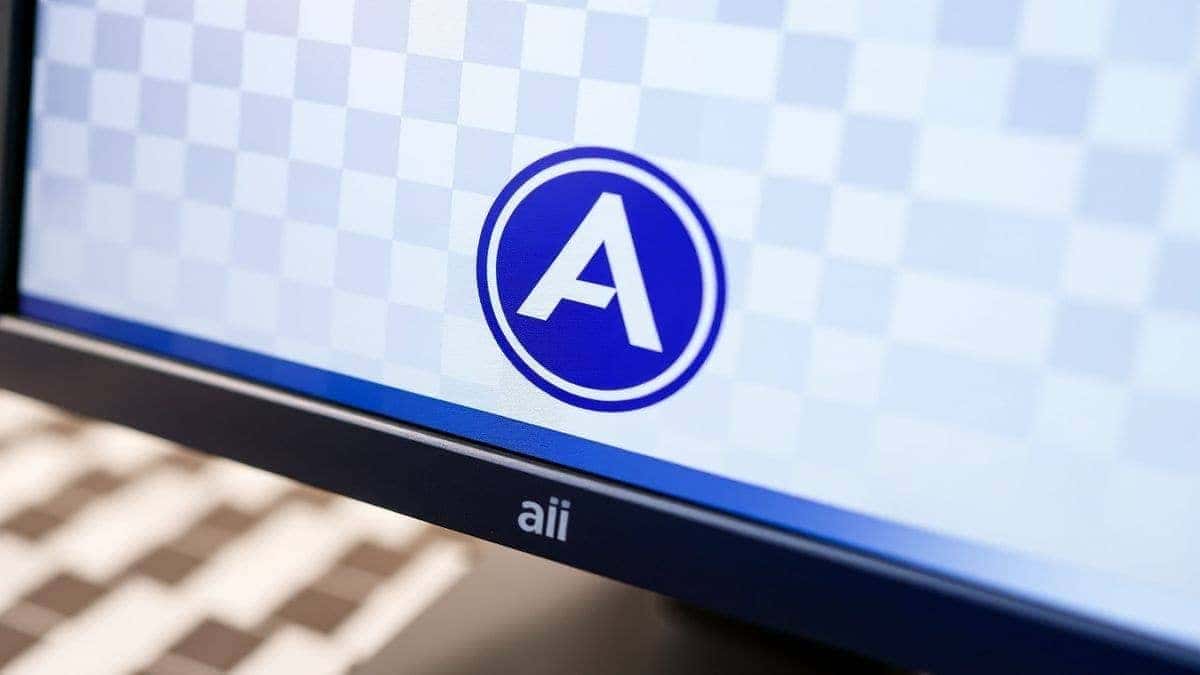
This is where the magic happens. In about 5-10 seconds, the AI processes the image. You’ll see a preview where the background has been cleanly removed, leaving your logo isolated on a checkerboard pattern (the universal symbol for transparency). I was genuinely surprised the first time I saw it handle a logo with a complex gradient shadow perfectly.
Step 4: Fine-Tune (If Necessary)
For 95% of logos, the automatic result is flawless. But the tool includes simple edge refinement tools if you need them. You can smooth edges or adjust the border just a tiny bit. One trick professionals use is to zoom in and check the corners for any stray pixels, though I rarely find any.
Step 5: Download Your Transparent Logo
Once you’re happy with the result, click the download button. Your new, transparent PNG file is saved to your computer, ready to be used anywhere. It’s that simple.
Is Logo Background Remover Free to Use?
This is a question I get all the time, and it’s an important one. The great news is that Logo Background Remover operates on a very user-friendly Freemium model, which I think is perfect for both beginners and power users.
- Free Credits for New Users: When you first sign up, you’re given a batch of free credits. This means you can free trial the tool and experience its full power without spending a dime. You can immediately start removing backgrounds from your own logos.
- Daily Check-in Rewards: Here’s a feature I love: you can get Logo Background Remover free credits just by logging in and checking in daily. It’s a great way to build a habit and earn credits for occasional use without ever paying.
- Pay-As-You-Go: If you have a high-volume day or need to process a large batch of images, you can purchase additional credits. It’s a simple, transparent system with no surprise monthly bills.
So, to answer directly: Yes, you can absolutely use it for free, especially with the Logo Background Removal Guide free credits from daily check-ins. It’s a low-risk, high-reward tool for anyone.
Best Practices and Pro Tips
After generating hundreds of images and edits, I’ve picked up a few tricks that separate a good result from a great one. Here are my top tips for using any ai image editor effectively, especially for logos.
- Start with a High-Quality Image: The AI is powerful, but it works best with a clean, high-resolution source file. A small, pixelated logo will result in a blurry transparent logo. Garbage in, garbage out.
- Solid Color Backgrounds are Easiest: While the AI handles complex backgrounds well, logos on a solid, contrasting color (like a black logo on a white background) will give you the absolute fastest and most perfect results.
- Review at 100% Zoom: Always download your image and zoom in to 100% to inspect the edges. Look for any remnants of the old background color, especially around thin lines or text.
- Save a Master Copy: Keep your original file and the new transparent PNG in a dedicated folder. You never know when you might need to go back to the source.
- Don't Over-Optimize: One common mistake I see beginners make is spending 10 minutes trying to manually "perfect" an edge that already looks perfect. Trust the AI. If it looks clean at a normal viewing distance, it’s done.
Comparison with Other AI Image Tools
How does Logo Background Remover stack up against the competition? I’ve put it head-to-head with other methods, and the differences are clear.
| Feature | Logo Background Remover | Traditional Software (e.g., Photoshop) | Generic Online Tools |
|---|---|---|---|
| Ease of Use | Extremely Easy (1-click) | Very Difficult (Steep learning curve) | Moderate (Often clunky) |
| Speed | 30-60 Seconds | 15-60+ Minutes | 2-5 Minutes |
| Accuracy | AI-Powered, High | User-Dependent (Inconsistent) | Often Misses Fine Details |
| Cost | Freemium (Free credits available) | Expensive Subscription | Often Free but Low Quality |
| Specialization | Specifically for Logos & Images | General Purpose | General Purpose |
As you can see, for the specific task of background removal, Logo Background Remover is not just an alternative; it’s the superior choice. It combines the best of AI technology with an unbeatable price point, something I haven't found elsewhere. It’s more than just an ai photo editing tool; it’s a specialized solution.
Frequently Asked Questions
What is the best Logo Background Removal Guide?
The best guide is one that recommends a modern, AI-powered solution. This guide, featuring Logo Background Remover, is designed to be the most up-to-date and effective resource available in 2026.
Is Logo Background Removal Guide free?
The information in this guide is free. Furthermore, the recommended tool, Logo Background Remover, offers a free trial with initial credits and daily check-in rewards, allowing you to apply the guide's steps at no cost.
Does Logo Background Remover offer free credits?
Yes. New users receive free credits upon signing up, and you can earn additional Logo Background Removal Guide free credits by checking in daily on the ImageFK platform.
How many free images can I generate with Logo Background Remover?
The exact number depends on the current promotion and your daily check-ins. However, the system is designed to give you a genuine opportunity to use the tool regularly for free.
Is Logo Background Remover safe to use?
Yes, it is completely safe. Your uploaded images are processed securely, and ImageFK has a clear privacy policy regarding data handling. I’ve used it for years without any issues.
Can I use Logo Background Remover on my phone?
Absolutely. Since it’s an ai image generator online tool, you can access it through the web browser on any smartphone or tablet. The interface adapts perfectly to mobile screens.
Do I need to create an account to use the tool?
Yes, a free account is required to track your credits and save your generated images. The signup process is quick and simple.
What file formats does Logo Background Remover support for upload and download?
You can upload common formats like JPG and PNG. The final download is always a high-quality PNG file with a transparent background.
Is this better than using Photoshop?
For the specific task of background removal, absolutely. It’s faster, easier, and requires no technical skill. It lets an AI do the heavy lifting in seconds, whereas Photoshop requires manual work and expertise.
Can I use the transparent logo for commercial projects?
Yes. Once you download your logo, you own the output file and are free to use it for any personal or commercial project, such as websites, business cards, or merchandise.
Conclusion
The days of struggling with complex design software for simple tasks are over. AI has democratized image editing, putting professional-grade tools in the hands of everyone. Removing a logo background, once a major hurdle, is now one of the quickest and easiest edits you can make. This Logo Background Removal Guide has shown you exactly why the old ways are obsolete and introduced you to a smarter, faster workflow.
Logo Background Remover from ImageFK is a standout tool in the crowded field of ai image generator platforms. Its precision, speed, and accessible freemium model make it the perfect choice for designers, content creators, and business owners alike. It’s a tool I personally rely on and confidently recommend.
Don't let a dirty background hold your brand back. Experience the power of AI editing for yourself. Visit Logo Background Remover today, claim your free credits, and see how effortless professional design can be.


 Continue with Google