Add White Background to Photo

Our free online tool lets you instantly add clean white backgrounds to any photo. Perfect for enhancing product images, creating polished social media posts, or preparing official ID photos. With no registration needed and user-friendly controls, achieve professional-looking edits in seconds—completely free and accessible anytime.

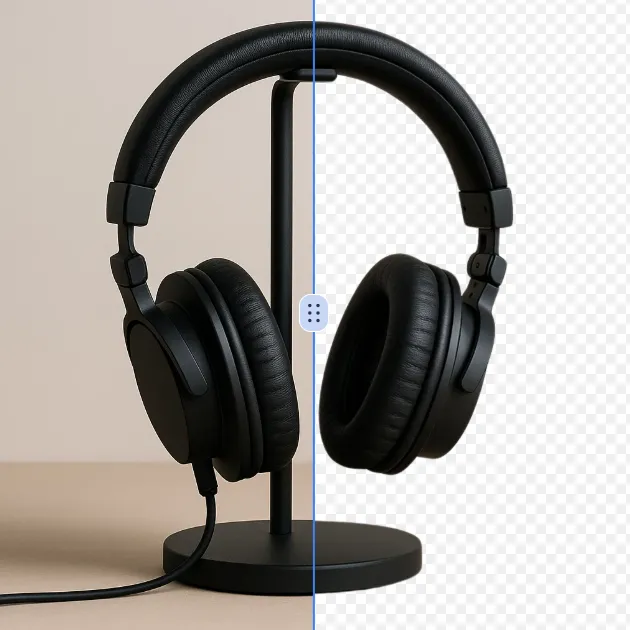
Original Add White Background to Photo image Original
Modified Add White Background to Photo image result Modified
💡 Please enter your description in English for better results Translate to English

What Is Add White Background to Photo?

Add White Background to Photo is a sophisticated AI-based online tool that employs artificial intelligence technology to automatically change the existing image background of a specific picture into a neat and shiny white background. Users can simply upload their desired pictures and the platform will completely change the background to pure white without any need for learning the complex photo editing skills or buying the expensive software.

One of the main reasons why the tool is so popular is that it seems to solve the major problem that photography, e-commerce listings, and marketing materials face that is the need of continuous white background standards. Regardless of the type of image to be done, this online tool always stands as a soldier fighting the battle of providing up to ten pictures a day with white clean backgrounds. It can be for the purposes of composing product photos for the shops, or photographing people in a very artificial-like manner, or cleaning up the images for presentations, add white background to photo gives a user-friendly solution that uses seconds to provide consistent high-quality visions.

How To Use Add White Background to Photo

The process of using the Add White Background to Photo tool is simple and very user-friendly:

  1. Upload Your Image: First, you have to pick and upload the picture that has to have a white background. The uploader accepts common formats such as JPEG, PNG, or WEBP files.

  2. Automatic Processing: After successful uploading, the AI system will conduct a full analysis of the image and automatically start the background replacement process by not needing any manual intervention or complex selections.

  3. Select Aspect Ratio: Opt for one of the many preset aspect ratios that include landscape, portrait, or square formats depending on your intended use or display requirements to best fit.

  4. Choose Processing Model: Decide among different AI processing alternatives – Fast mode for speedy generation with satisfactory consistency, or Max mode for premium 4K output with increased detail and quality recommended.

  5. Review Results: Take a look at the processed picture to verify that the white background addition fulfills your demands. The AI manages the subject separation and background swapping with great precision.

  6. Download Final Image: After you confirm that you like the outcome, download your image that has the new white background and put it to your projects, e-commerce listings, or marketing materials.

FAQs (Frequently Asked Questions)

How does how to add white background to photo technology work to achieve clean results?

The how to add white background to photo technique employs sophisticated subject detection algorithms specifically trained to recognize and segregate foreground elements from the existing backgrounds. The AI system considers color boundaries, edge details, and subject features to draw accurate cutouts that blend seamlessly with pure white backgrounds. State-of-the-art neural networks manage complex cases like hair edges, transparent stuff, and fine details where even standard methods break down. The processing consists of multiple AI models working together to guarantee supreme accuracy in subject isolation and at the same time delivering the natural shadows and lighting effects that give the final image the professionals-photographed-paper white background appearance.

What makes add a white background to a photo different from traditional photo editing methods?

In contrast to traditional photo editing techniques that require manual selection tools, layer management, and specialized skills using complex software like Photoshop, adding a white background to a photo automates the entire process through artificial intelligence. Traditional approaches ask for a big time investment, artistic skills and a close acquaintance with the specialized software interfaces to achieve a satisfactory result, especially when working on complex images with fine details. The AI-powered solution wipes away these obstacles by automatically detecting subject boundaries and applying suitable background replacement techniques without intervention from the user. Users enjoy instant results without the accompanying steep learning curves, while the system guarantees uniform quality and accuracy that would be hard to replicate manually.

Can I use this tool for professional e-commerce product photography?

E-commerce businesses and online retail platforms that apply this tool for product photography will have pictures that meet industry requirements and standards. The technology is able to generate clean and uniform white backgrounds that comply with the major marketplace standards such as those of Amazon, eBay, and Shopify product image guidelines. The AI ensures that correct product lighting, natural shadows, and color accuracy are maintained so that items look like they are being professionally presented. This solution is already being used by several e-commerce firms to quickly process large numbers of product photos without the need for expensive professional photography or extensive post-processing work. The consistent quality of the output helps maintain the brand image standards throughout the entire product catalog.

What image formats and subject types work best with white background addition?

JPEG, PNG, and WEBP white background addition works best when a clear and high-resolution subject is present in the standard image formats. Images with very good contrast between the subject and original background, good lighting and moderate file sizes are likely to produce the best results. This AI works effectively on typical subjects such as products, people, animals, and objects with clear outlines.

How accurate is the AI when handling complex subjects with transparent elements?

Accuracy levels of Artificial Intelligence technology in processing complex subjects with transparent elements like glassware, jewelry, and reflective products ranged from very high to exceptional. The use of advanced algorithms tailored specifically to these kinds of materials can recognizing and highlighting transparency effects meanwhile making a clean integration with white backgrounds. The system rests upon analyzing light refraction, reflections, and the semi-transparent nature of the materials in order to give a very realistic and natural look to the elements. The specialized neural networks act upon and take care of the intricate and exacting requirements of transparent objects which results in the final image looking as if it is taken naturally rather than from a composite of different images. Nevertheless, super challenging lighting situations or extremely complex transparent elements may still require the use of premium processing capabilities to attain the best results.

Does the tool preserve image quality during the white background replacement process?

The tool relies on state-of-the-art algorithms that guarantee pixel integrity and color fidelity to keep the original image quality unaffected throughout the process of white background replacement. Generally, the systems do process the images in a way that no compression artifacts or quality degradation are introduced so the subject retains its original sharpness and detail. Designer edge processing techniques work hand in hand with the different image types to maintain the fine details like hair strands and fabric textures without any blurring or distortion. The output quality will vary depending on the processing mode selected and the output format specified by the user. The premium processing options usually come with enhanced quality preservation features and higher resolution outputs that will surely yield professional-grade results.

What is the process of the tool for adding white backgrounds to multiple subjects or group photos?

By using state-of-the-art multi-subject detection and processing, the tool is capable of dealing with multiple subjects or group pictures while adding white backgrounds. Every subject is recognized and processed by the AI system as a separate entity, thus applying the right isolation and background replacement techniques for each individual element. Premium processing modes offer the enhanced algorithms necessary for optimal results in complex situations of overlapping subjects, different distances from the camera, or subjects with indistinct characteristics. The spatial relationship understanding of the system plays a major role in keeping the visual consistency across the whole image and at the same time makes sure that every subject is correctly isolated against the new white background.

What devices and browsers support the add white background to photo online functionality?

The add white background to photo online functionality supports all the main operating systems and devices like Windows, macOS, Linux, iOS, and Android. All the modern browsers like Chrome, Firefox, Safari, and Edge are also compatible, making it easy for all users to access the tool no matter what computer they are using. Mobile users can also take advantage of the feature as the site design is responsive and works on different screen sizes and based on touch, making it easy to add white backgrounds even on mobile and tablet devices. The use of cloud technology means that there is no need for installations specific to the device, and performance is the same across all hardware configurations. The internet connectivity requirements are not demanding, so the service can work effectively even on standard broadband connections without sucking up great amounts of bandwidth.

Can I batch process multiple images to add white backgrounds simultaneously?

At the moment, the interface is designed for one image processing at a time, but the AI technology behind it is capable of batch processing works flows for premium subscription users. Customers who require a lot of white background additions may benefit from the advanced functionality, which allows for uploading multiple images and automatic processing sequences. The system guarantees quality at every stage of the batch processing and at the same time provides users with progress tracking and bulk downloading. For businesses or individuals who need to process a large number of images constantly, premium plans usually come with batch processing feature that can reduce significantly the time investment required for large image editing projects.

What output formats and resolutions are available for images with added white backgrounds?

The application normaly presents several output formats in the image processing tool, tailored to various usage scenarios such as standard JPEG, PNG, and occasionally WEBP formats. Ordinary processing modes yield web-ready images that can be used in e-commerce and digital display poster, while premium modes very often comprise high-resolution 4K outputs suitable for print applications. The application guarantees the preservation of the image ratio integrity while simultaneously providing flexible sizing options to cater for different display platforms and applications. The quality of the produced images is professional-grade regardless of the selected resolution, that is to say, the images will come with a clean white background and be sharp and clear no matter if they are used for small thumbnails or large prints. The users are usually able to download their creations via the platform interface immediately after the processing is done.

Start Add White Background to Photo with AI Image Editor Today

Transform your photos in seconds with our powerful AI Image Editor and online image editor tools

Edit Your First Image with ImageFk

More AI Image Editor Tools

Discover our collection of AI-powered Image tools to enhance your creativity

AI Background Remover

AI Background Remover

AI Background Remover is a free online tool that uses advanced AI to remove image backgrounds automatically. It delivers high-quality transparent backgrounds instantly, requires no editing skills, and is ideal for professionals and beginners alike. Save time and enhance your images effortlessly with this powerful, user-friendly solution.

Try Now
Remove Text From Image

Remove Text From Image

Our AI-powered Remove Text From Image tool lets you seamlessly delete unwanted text, watermarks, and logos from photos. Experience fast, high-quality image editing with no registration needed. Perfect for quick fixes and professional use, it delivers smooth results every time.

Try Now
Change Background Color of Photo

Change Background Color of Photo

Easily change the background color of your photos using our AI-powered tool. It's fast, free, and secure, designed for creators, marketers, and businesses. Upload your image, select your desired color, and get professional results in seconds. No downloads or skills required—transform your visuals with ease and boost your projects today!

Try Now
AI Photo Restoration

AI Photo Restoration

AI Photo Restoration is a free online service that uses advanced AI to restore old, damaged, and black-and-white photos. It delivers high-quality, accurate results quickly and securely. Easily revive your cherished memories without any cost or hassle, ensuring your photos look new again.

Try Now
AI Image Extender

AI Image Extender

AI Image Extender is a free online tool that uses AI to expand images seamlessly, ideal for social media posts, e-commerce listings, and creative designs. It offers quick, no-signup processing, delivering high-quality results to boost your visuals and save time. Experience effortless image enhancement with this user-friendly AI solution.

Try Now
Logo Background Remover

Logo Background Remover

Logo Background Remover is an AI-powered online tool that instantly removes backgrounds from logos. Upload your logo image, and our AI automatically detects and removes the background within seconds. Download your logo as a transparent PNG file immediately - Ideal for creating professional logos with clean backgrounds for websites, presentations, and marketing materials.

Try Now
AI PNG Maker

AI PNG Maker

PNG Maker is your free online tool for effortless image transformation. Convert JPG or WebP files to PNG with transparent backgrounds instantly using AI technology. Create custom transparent images like arrows, Instagram logos, and hearts for social media, branding, or graphics projects. Enjoy fast, high-quality results with no design experience required—boost your visuals in seconds!

Try Now
AI Unpixelate Image

AI Unpixelate Image

Unpixelate Image is an AI-powered online tool that transforms blurry, pixelated images into sharp, clear visuals instantly. Upload any photo—from nostalgic family pictures to text screenshots or product images—and watch our advanced technology restore details automatically. Enjoy free, high-quality depixelation without registration, delivering professional-grade enhancements for personal or business use effortlessly.

Try Now
×

Unlock Premium AI Image Editing Features

Sign in with Google to access advanced editing tools, save your creations, and enjoy unlimited image enhancements.