When to use this page
Use this route for background changes, product variations, style exploration, and controlled edits that start from an existing image.
Transform a reference image with a written instruction while keeping the source available for comparison. Use the prompt to explain what should change and what should remain recognizable.
 Modified
 Use this route for background changes, product variations, style exploration, and controlled edits that start from an existing image.
Check faces, text, product details, edges, and any rights-sensitive content. The generated result is a draft until you approve it.
Image to Image starts with a reference image and a written instruction. The reference provides visual context such as a subject, composition, product shape, or color direction, while the prompt explains the transformation you want to explore. This is a better starting point than text-only generation when the original image must remain recognizable.
Use a clear JPEG, JPG, PNG, or WEBP image with the main subject visible. If a product label, face, pose, or object boundary must remain stable, say so in the prompt and inspect that area after generation. Upload more than one reference only when the selected model and account settings support it.
State the change first, then explain what should stay. Describe a new background while keeping the product shape and camera angle, or request an illustration style while preserving the subject's pose and framing. Mention lighting, color, material, and perspective when they matter to the intended result.
Use this route for product-photo backgrounds, alternate colorways, concept variations, portrait styles, editorial crops, campaign directions, and visual cleanup ideas. Use only images, people, brands, and characters you are allowed to process or publish.
Compare the result with the source. Check subject identity, product dimensions, text, logos, hands, faces, hair, object edges, shadows, and background transitions. AI edits can introduce plausible-looking details that were not present in the reference. Keep the original until the new image has passed your quality, rights, and factual review.
Use a clear JPEG, PNG, or WEBP image with the subject visible. State the intended change explicitly and mention details that must stay, such as the product shape, pose, or framing.
The reference guides the generation but does not guarantee pixel-level preservation. Compare the output with the original and keep the source until the result has been approved.
Transform a reference image with a written instruction while keeping the source available for comparison. Use the prompt to explain what should change and what should remain recognizable.
Compare the result with the original, inspect the details that matter to your task, and keep the original until the output is approved.
Use Text to Image when you want to create a new visual from an idea and do not need an existing image to guide the composition. Use Image to Image when the reference should influence the result.
Transform your images instantly using powerful AI Image Editor AI tools.
Try Transform a Reference Image NowDiscover more AI-powered tools to enhance and transform your images.
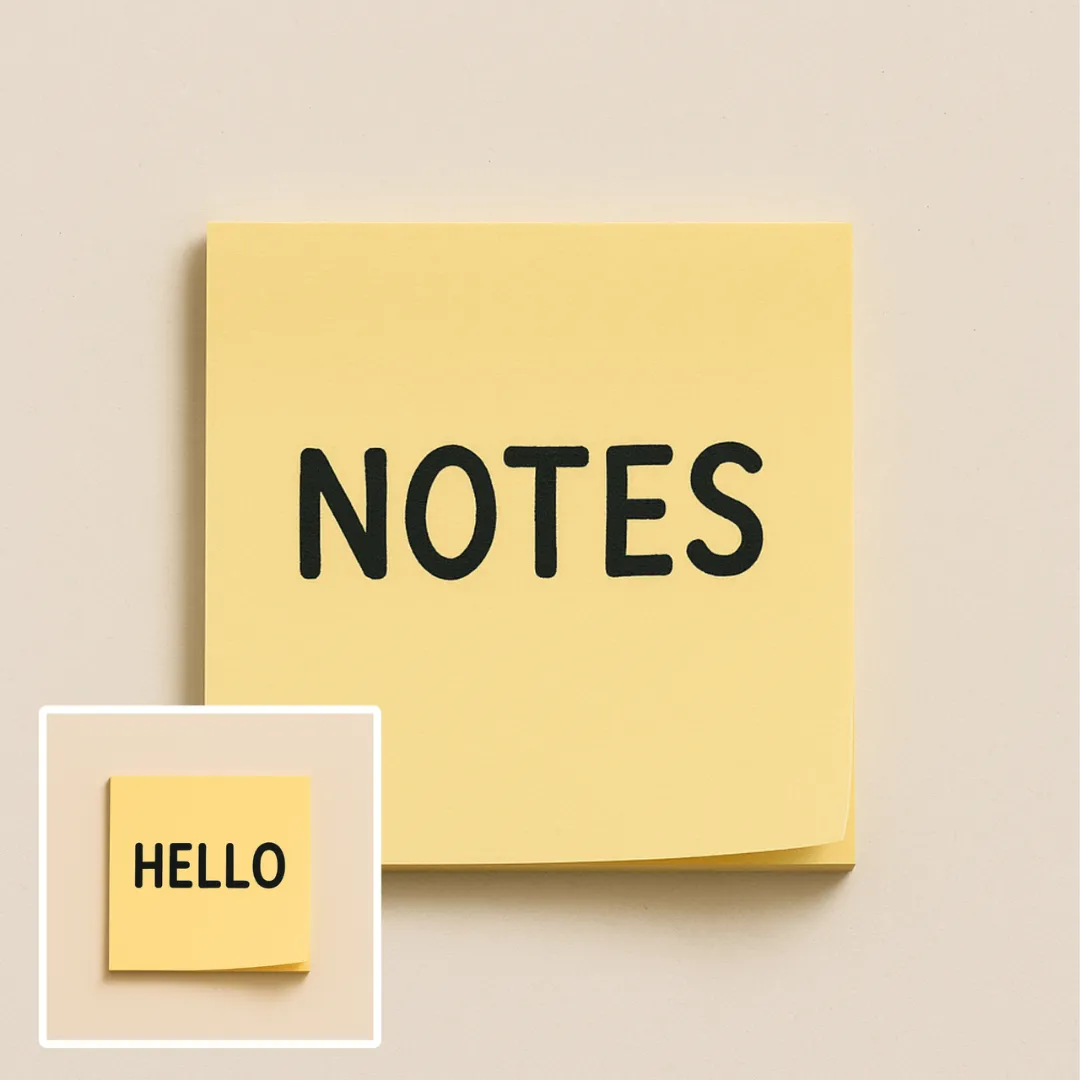
Edit or remove visible text with AI Edit Text in Image while preserving the surrounding layout. Check lettering, alignment, background texture, and the final crop before publishing.
Try Now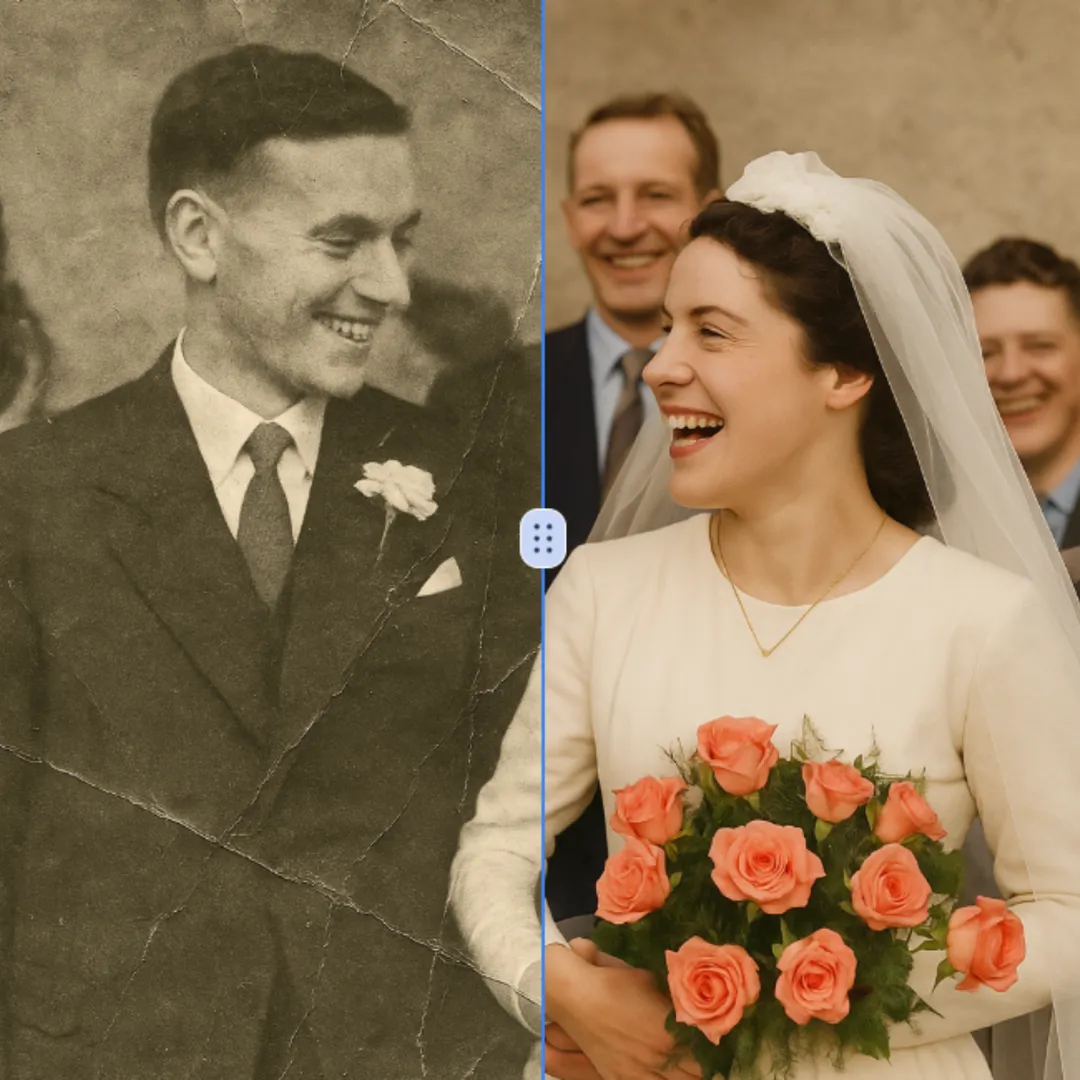
Improve visible image detail with AI Photo Restoration while keeping the original subject in view. Compare edges, faces, textures, and small text at the intended output size.
Try Now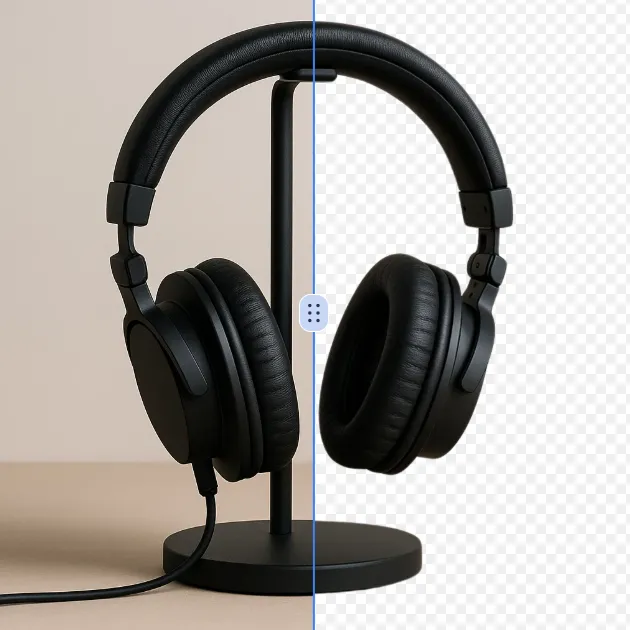
Remove a background from a photo or logo with AI Background Remover, then check subject edges, fine details, and transparency before using the cutout in a new design.
Try Now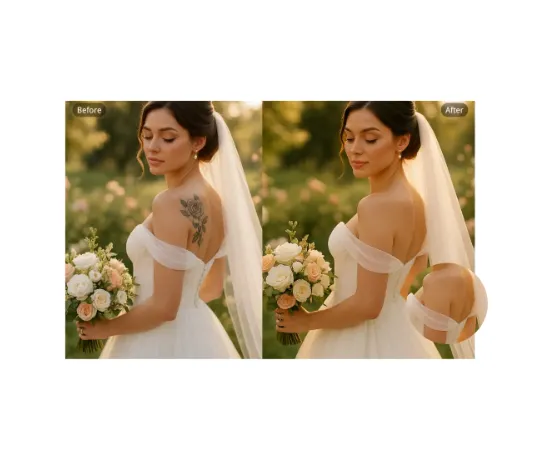
Use AI Remove Tattoo to target an unwanted overlay or localized detail in an image. Compare the edited area with the surrounding texture and correct visible seams before export.
Try NowUse Google to start creating and save your image. No card required.
 Continue with Google
 Remove the watermark, download HD images, and keep creating.
Credit Policy:
Secure checkout · Payment methods shown at checkout · Credits after confirmation