When to use this page
Start here when you have a concept, product direction, social post, or visual brief but no source image to edit.
Turn a written idea into a new image with a focused prompt. Describe the subject, setting, visual style, and important details, then review the result before downloading or publishing it.
 Modified
 Start here when you have a concept, product direction, social post, or visual brief but no source image to edit.
Check faces, text, product details, edges, and any rights-sensitive content. The generated result is a draft until you approve it.
Text to Image turns a written visual brief into a new image. It is useful when you have an idea, product direction, social post, or illustration brief but do not have a source photo to edit. Explain what should be visible, how the scene should feel, and which details must stay prominent.
Begin with the main subject and action. Add the setting, composition, lighting, color direction, and visual style when they help the result. A product brief can mention the product type, camera angle, background, light source, and space needed for a headline. A character brief can mention the pose, clothing, expression, environment, and framing.
Keep the request concrete instead of stacking unrelated ideas. If readable text, a logo, a person identity, or a product shape matters, state that requirement clearly and inspect it after generation. AI image generation can change small lettering, hands, faces, and fine details, so treat the output as a draft until you approve it.
An optional reference image can guide a composition or color direction. When an existing image should remain central to the result, use the Image to Image workflow instead.
Text to Image can support concept boards, campaign mood images, social media drafts, product-scene ideas, blog illustrations, presentation backgrounds, and early design directions. Use only assets, people, brands, and characters you are allowed to process or publish.
Check the result at full size. Look for incorrect text, changed product features, unnatural hands or faces, broken edges, inconsistent shadows, and objects that were not requested. Keep the prompt and source brief so a useful direction can be refined. Do not assume that generated output is factually accurate or ready for commercial publication without human review.
Describe the subject, environment, composition, lighting, style, and details that matter to the result. Keep one main visual idea per generation so you can tell what needs refining.
Not always. Generated lettering, logos, small labels, faces, and hands can need several attempts, so inspect the image before using it in a finished design.
Turn a written idea into a new image with a focused prompt. Describe the subject, setting, visual style, and important details, then review the result before downloading or publishing it.
Compare the result with the original, inspect the details that matter to your task, and keep the original until the output is approved.
Yes, when the selected model supports reference images. If the reference should strongly influence the result, the Image to Image page provides a clearer starting point.
Transform your images instantly using powerful AI Image Editor AI tools.
Try Create an Image From Text NowDiscover more AI-powered tools to enhance and transform your images.
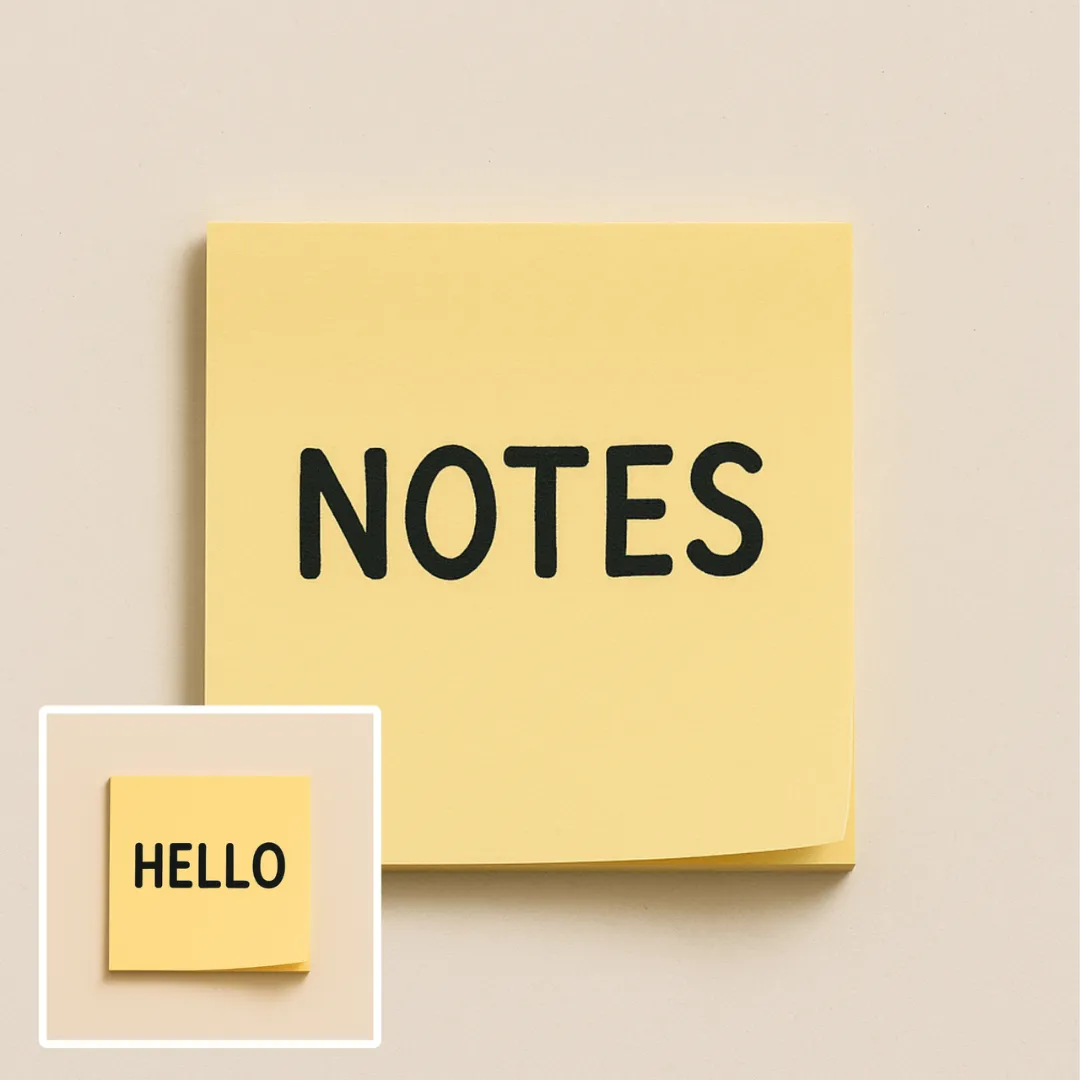
Edit or remove visible text with AI Edit Text in Image while preserving the surrounding layout. Check lettering, alignment, background texture, and the final crop before publishing.
Try Now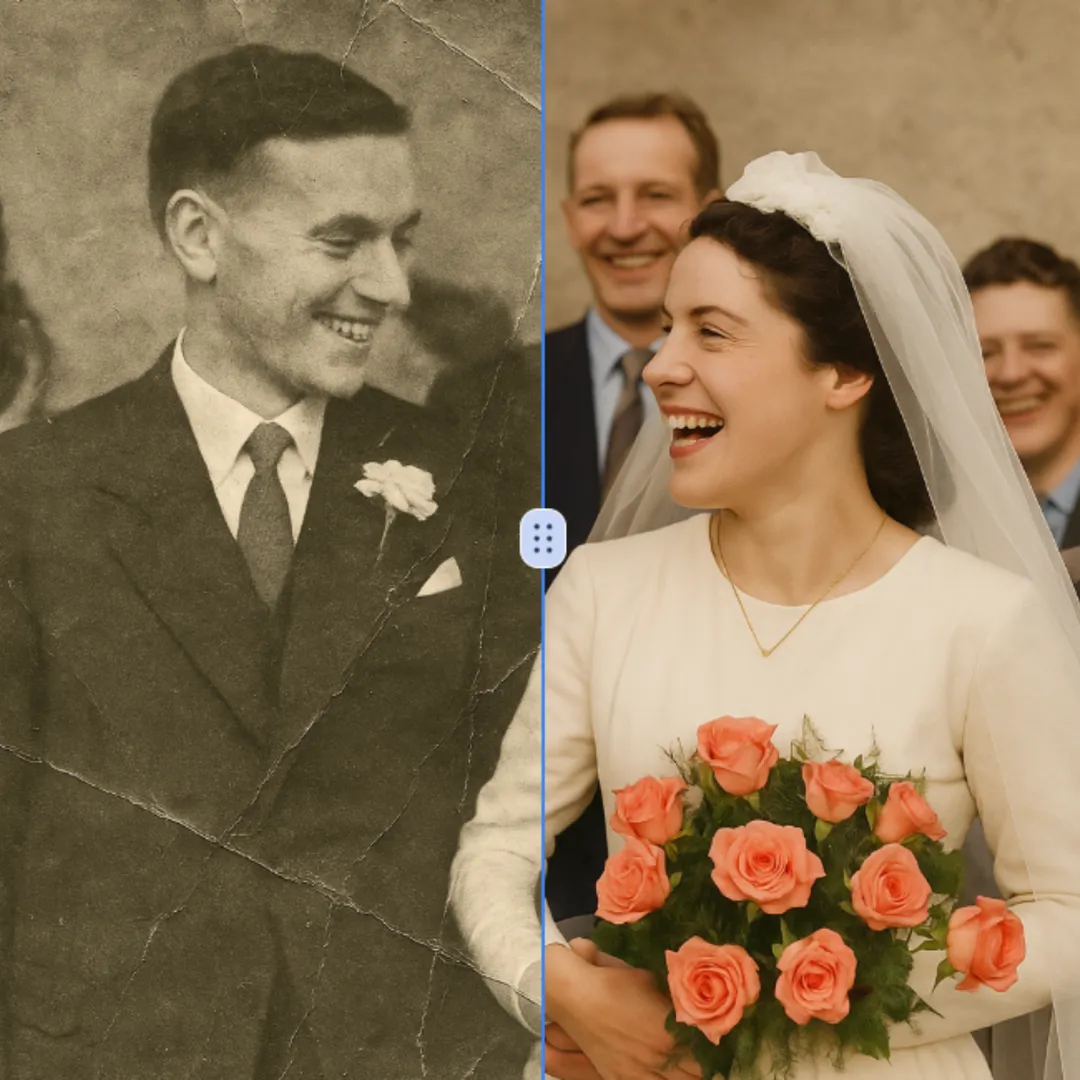
Improve visible image detail with AI Photo Restoration while keeping the original subject in view. Compare edges, faces, textures, and small text at the intended output size.
Try Now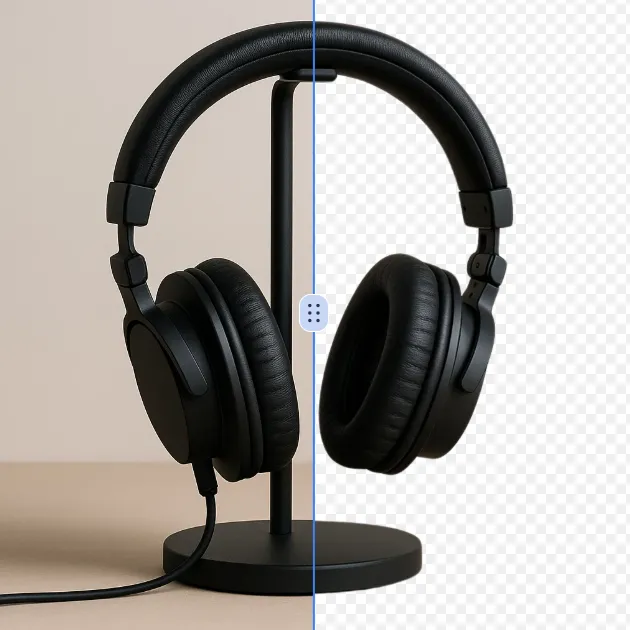
Remove a background from a photo or logo with AI Background Remover, then check subject edges, fine details, and transparency before using the cutout in a new design.
Try Now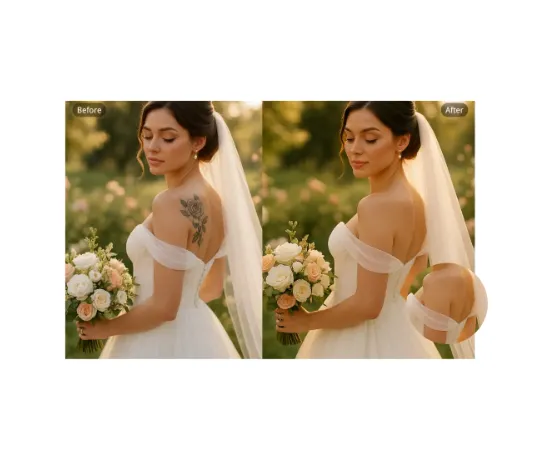
Use AI Remove Tattoo to target an unwanted overlay or localized detail in an image. Compare the edited area with the surrounding texture and correct visible seams before export.
Try NowUse Google to start creating and save your image. No card required.
 Continue with Google
 Remove the watermark, download HD images, and keep creating.
Credit Policy:
Secure checkout · Payment methods shown at checkout · Credits after confirmation