When to use this page
Keep the prompt specific and retain the original image until the result has been checked.
Recolour a product, object, garment, or selected visual element from an uploaded image. Specify what should change and what must stay the same, then review the result before use.
 Modified
 Keep the prompt specific and retain the original image until the result has been checked.
Check faces, text, product details, edges, and any rights-sensitive content. The generated result is a draft until you approve it.
Upload the image and name the exact object or area that should change colour. Include the target colour, material, lighting, and details that must remain unchanged.
AI recolouring is useful for exploring variants, but it is not a guaranteed production colour match. Compare the output with the original and do not use it as an exact colour-management proof for manufacturing or specifications.
Recolour a product, object, garment, or selected visual element from an uploaded image. Specify what should change and what must stay the same, then review the result before use.
Compare the result with the original, inspect the details that matter to your task, and keep the original until the output is approved.
You can request several changes, but one target at a time usually produces a more predictable result.
No. The output is a visual interpretation. Use a design or production workflow when an exact colour value is required.
Use the result as a concept or supporting visual only after checking that the product and colour remain accurately represented.
Transform your images instantly using powerful AI Image Editor AI tools.
Try AI Image Color Changer NowDiscover more AI-powered tools to enhance and transform your images.
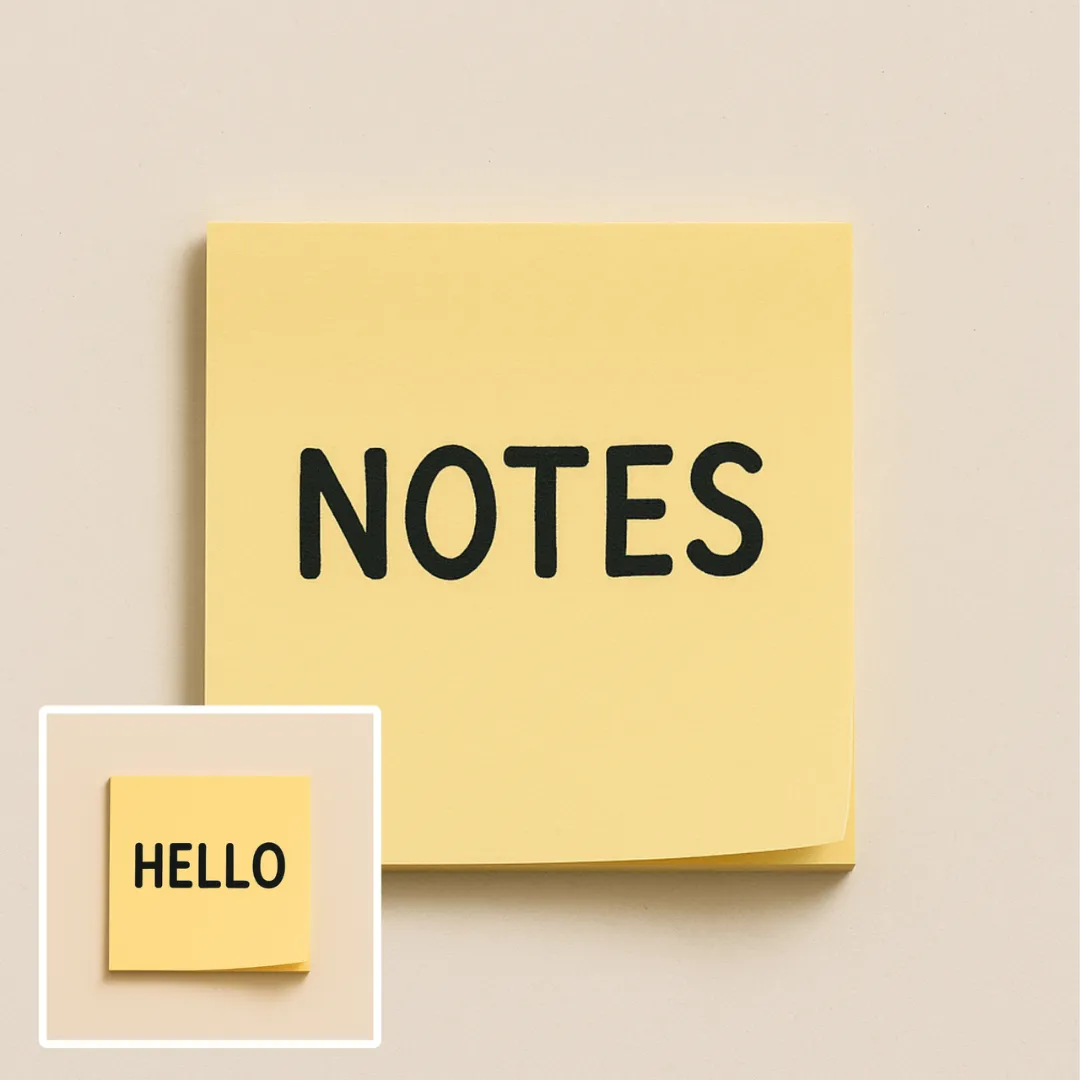
Edit or remove visible text with AI Edit Text in Image while preserving the surrounding layout. Check lettering, alignment, background texture, and the final crop before publishing.
Try Now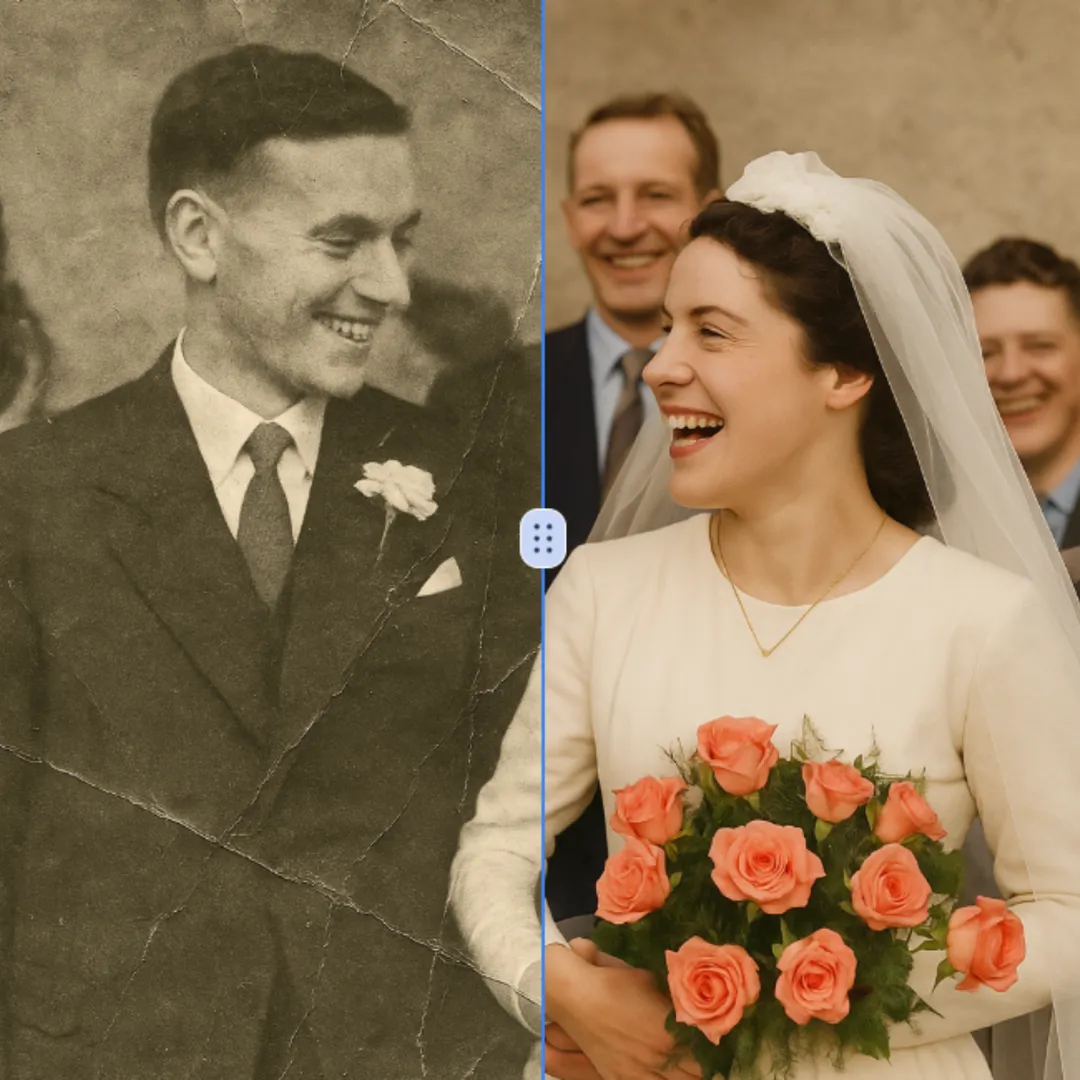
Improve visible image detail with AI Photo Restoration while keeping the original subject in view. Compare edges, faces, textures, and small text at the intended output size.
Try Now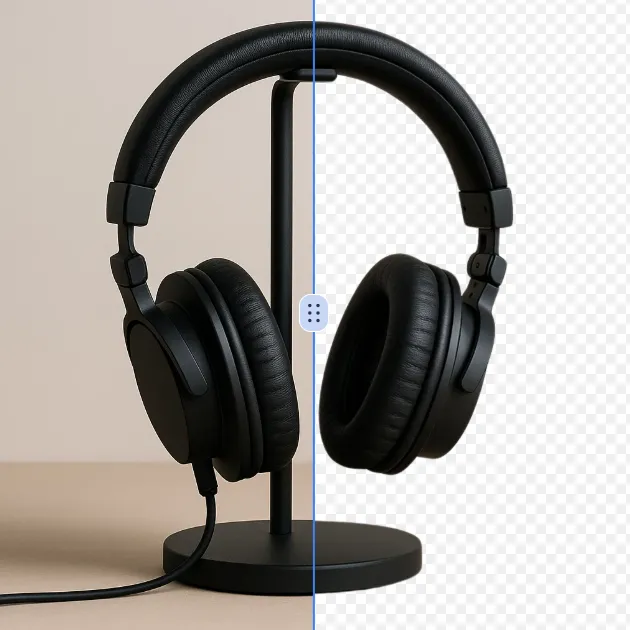
Remove a background from a photo or logo with AI Background Remover, then check subject edges, fine details, and transparency before using the cutout in a new design.
Try Now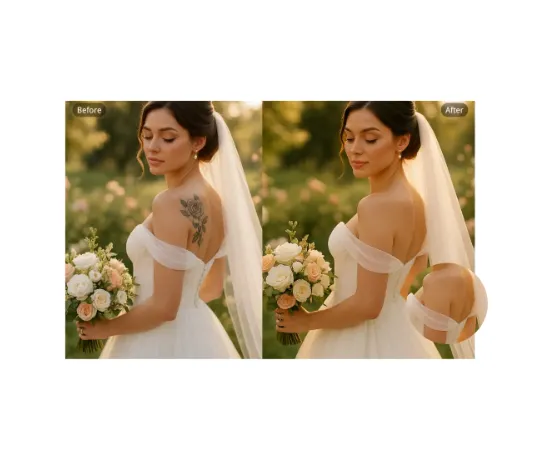
Use AI Remove Tattoo to target an unwanted overlay or localized detail in an image. Compare the edited area with the surrounding texture and correct visible seams before export.
Try NowUse Google to start creating and save your image. No card required.
 Continue with Google
 Remove the watermark, download HD images, and keep creating.
Credit Policy:
Secure checkout · Payment methods shown at checkout · Credits after confirmation