When to use this page
Keep the prompt specific and retain the original image until the result has been checked.
Restore an old or damaged photo from a clear scan. Request specific repairs or subtle colourisation, preserve the original, and review the result as an AI-assisted interpretation.
 Modified
 Keep the prompt specific and retain the original image until the result has been checked.
Check faces, text, product details, edges, and any rights-sensitive content. The generated result is a draft until you approve it.
Start with the clearest scan or source photo available. Describe visible scratches, dust, fading, blur, contrast problems, and whether you want subtle colourisation.
Missing detail and colour are AI-assisted interpretations, not proof of the original appearance. Severe damage can lead to invented facial or object details, so label the restored copy appropriately when historical accuracy matters.
Restore an old or damaged photo from a clear scan. Request specific repairs or subtle colourisation, preserve the original, and review the result as an AI-assisted interpretation.
Compare the result with the original, inspect the details that matter to your task, and keep the original until the output is approved.
No. Colourisation estimates likely colours from the available visual information. Keep the source and treat the result as an interpretation.
Not reliably. The tool can improve visible clarity, but severe damage may produce invented facial details that need careful review.
A high-resolution, well-lit scan with minimal compression gives the model more genuine detail to work with.
Transform your images instantly using powerful AI Image Editor AI tools.
Try AI Photo Restorer NowDiscover more AI-powered tools to enhance and transform your images.
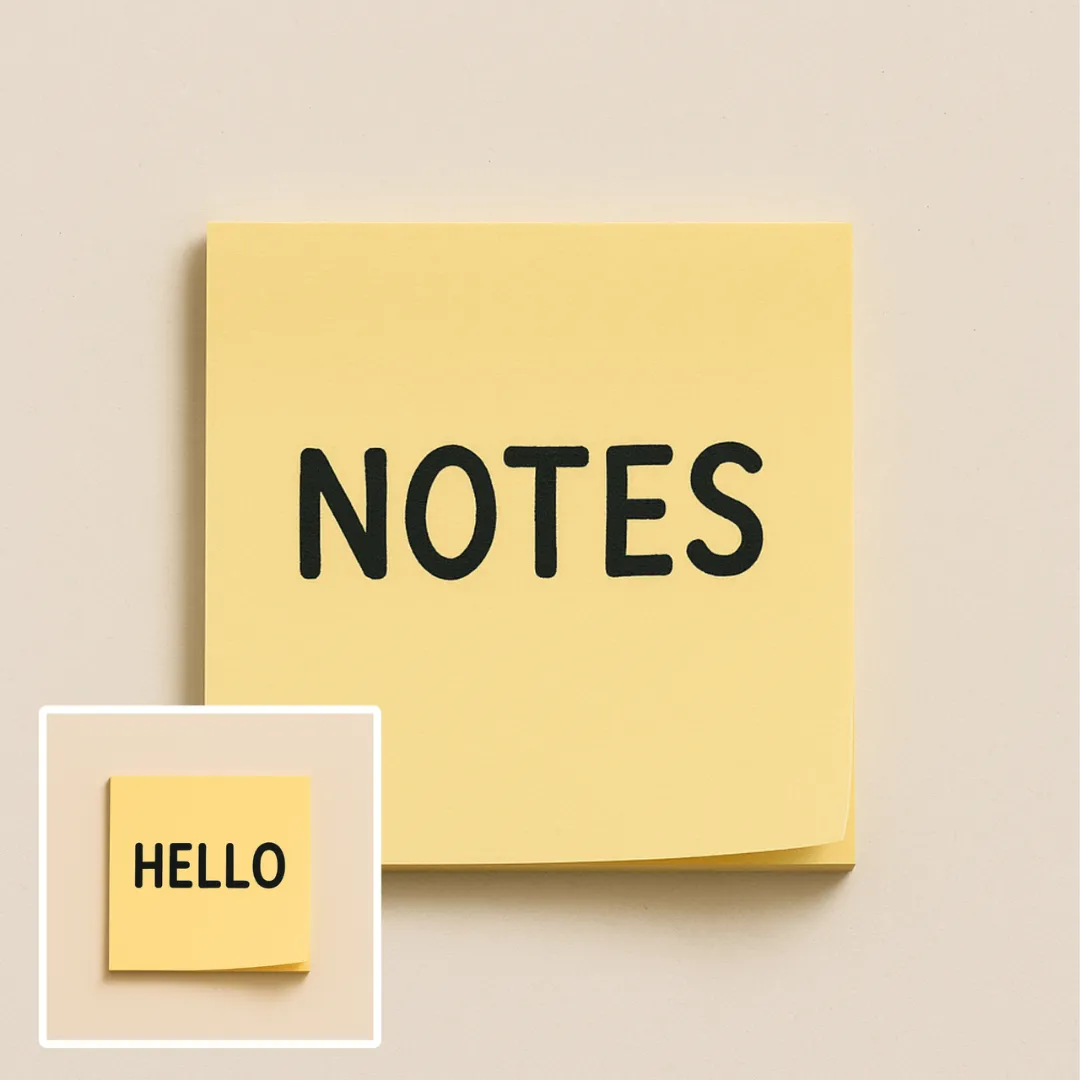
Edit or remove visible text with AI Edit Text in Image while preserving the surrounding layout. Check lettering, alignment, background texture, and the final crop before publishing.
Try Now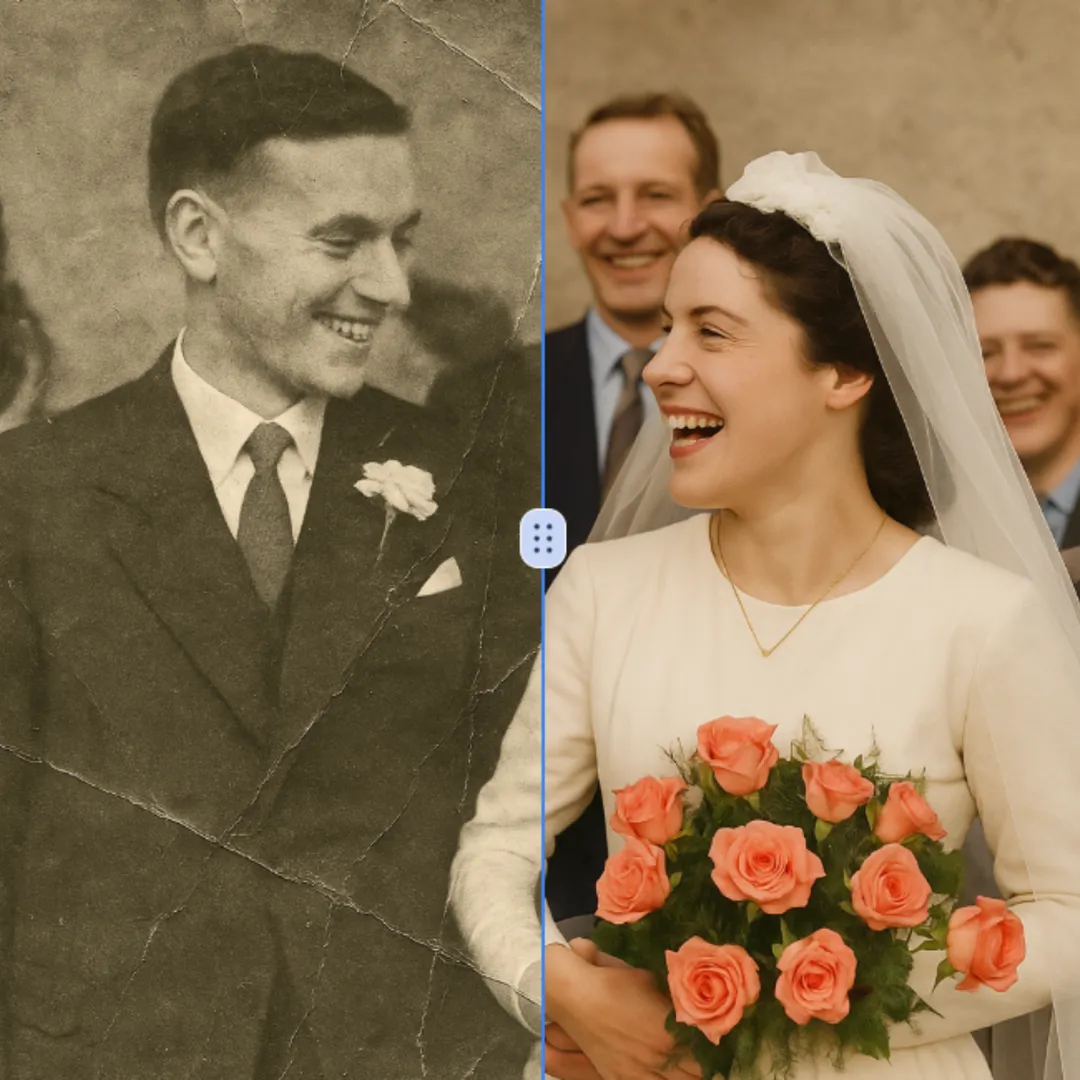
Improve visible image detail with AI Photo Restoration while keeping the original subject in view. Compare edges, faces, textures, and small text at the intended output size.
Try Now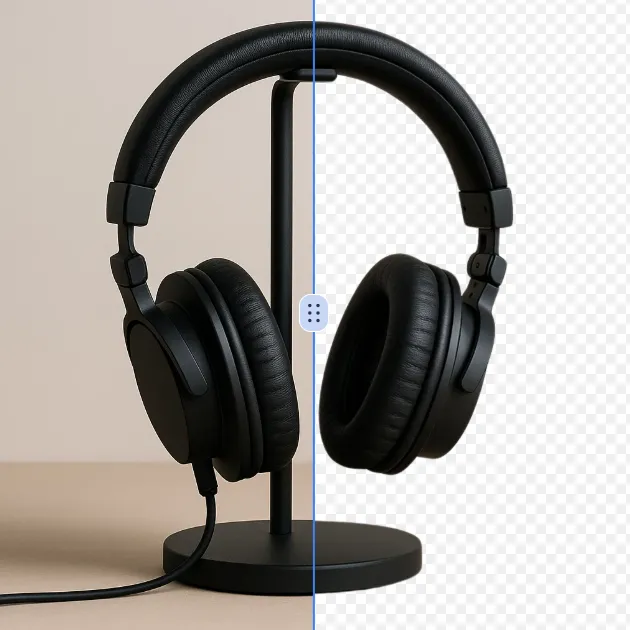
Remove a background from a photo or logo with AI Background Remover, then check subject edges, fine details, and transparency before using the cutout in a new design.
Try Now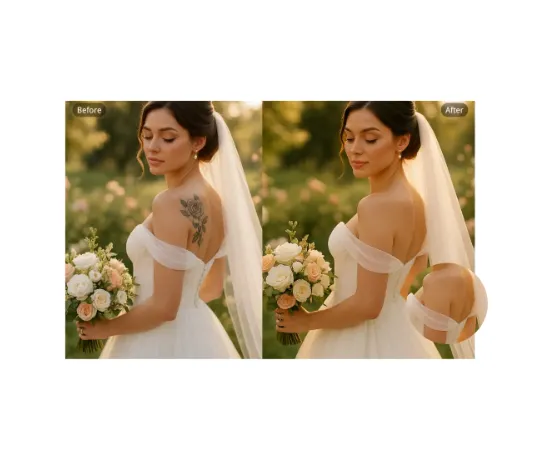
Use AI Remove Tattoo to target an unwanted overlay or localized detail in an image. Compare the edited area with the surrounding texture and correct visible seams before export.
Try NowUse Google to start creating and save your image. No card required.
 Continue with Google
 Remove the watermark, download HD images, and keep creating.
Credit Policy:
Secure checkout · Payment methods shown at checkout · Credits after confirmation