When to use this page
Keep the prompt specific and retain the original image until the result has been checked.
Remove an unwanted person from a photo with AI People Remover, then inspect the repaired background, edges, shadows, signs, and nearby subjects before using the result.
 Bearbeitet
 Keep the prompt specific and retain the original image until the result has been checked.
Check faces, text, product details, edges, and any rights-sensitive content. The generated result is a draft until you approve it.
AI People Remover helps clean up travel photos, street scenes, property photos, and group pictures by removing a person you do not want to keep in the final image. Upload a clear image, describe which person should be removed, and review the generated result before downloading or publishing it.
People Remover is useful for removing an accidental passerby from a travel photo, cleaning an empty-room or property photo, simplifying a street scene, or preparing a social image with fewer distractions. It works best when the unwanted person is not covering a large part of the main subject and the surrounding background contains enough visual information for reconstruction.
The result is AI-generated image editing, not a guaranteed pixel-perfect restoration. A person standing in front of important text, a detailed face, a complex architectural edge, or a large object may leave visible changes. For that reason, inspect the complete image at full size and keep the original file as a source.
Use a high-resolution image with good lighting. Describe one removal task at a time instead of combining several unrelated edits. If several people are present, identify the target by position and clothing. Avoid requesting removal of a person when you do not have the right to edit or publish the image. Do not use the tool to create misleading evidence, impersonate someone, or conceal material facts.
Remove an unwanted person from a photo with AI People Remover, then inspect the repaired background, edges, shadows, signs, and nearby subjects before using the result.
Compare the result with the original, inspect the details that matter to your task, and keep the original until the output is approved.
You can describe multiple targets, but results are usually easier to review when you remove one person or one nearby group at a time. Complex scenes may require several attempts.
No image editor can guarantee that. Results depend on image quality, the size of the removed area, and the surrounding background. Check edges, shadows, text, and repeated patterns before use.
No. The workflow creates a generated result. Keep your original image separately so you can compare versions or try another edit.
Review the rights to the source image, the people shown in it, and the final use. ImageFk provides an editing workflow and does not transfer rights to content you do not own or have permission to use.
Verwandle deine Bilder sofort mit leistungsstarken AI Effects Filters KI-Tools.
Jetzt AI People Remover ausprobierenEntdecke weitere KI-gestützte Tools, um deine Bilder zu verbessern und zu transformieren.

Transform a source image toward the ai photo to anime look with AI Photo to Anime. Describe the target style or character details, then check identity, pose, facial features, and background consistency.
Jetzt testen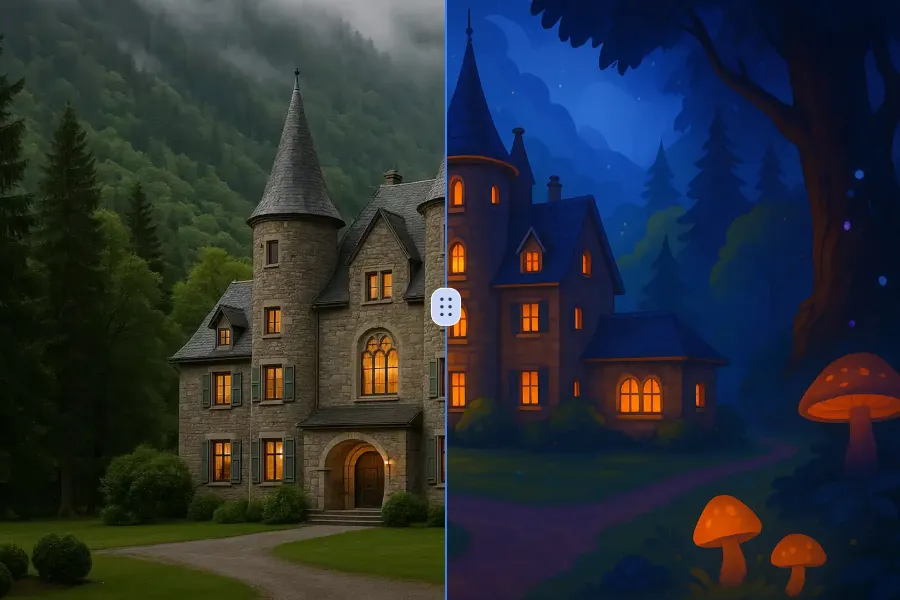
Transform a source image toward the ai photo to cartoon look with AI Photo to Cartoon. Describe the target style or character details, then check identity, pose, facial features, and background consistency.
Jetzt testen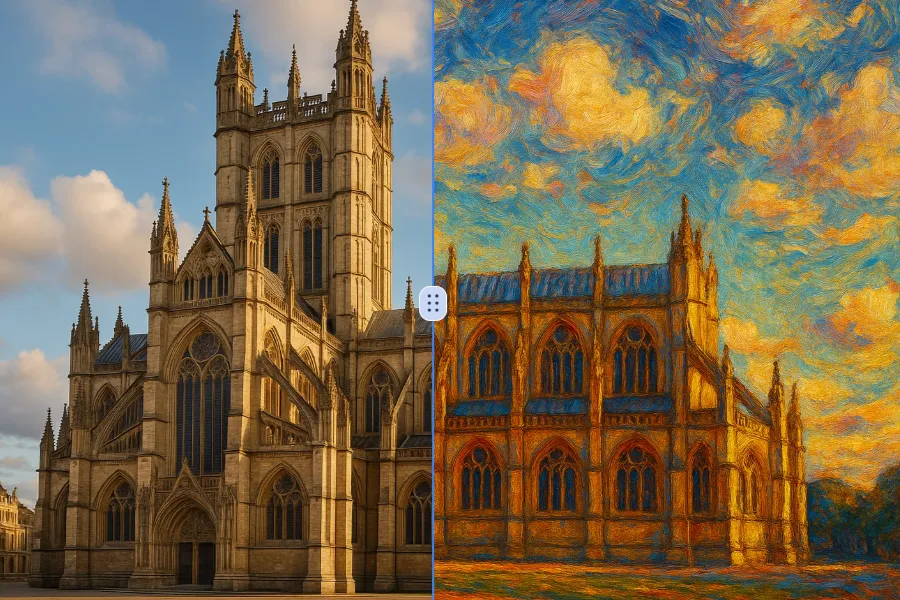
Transform a source image toward the photo to oil painting look with Photo to Oil Painting. Describe the target style or character details, then check identity, pose, facial features, and background consistency.
Jetzt testen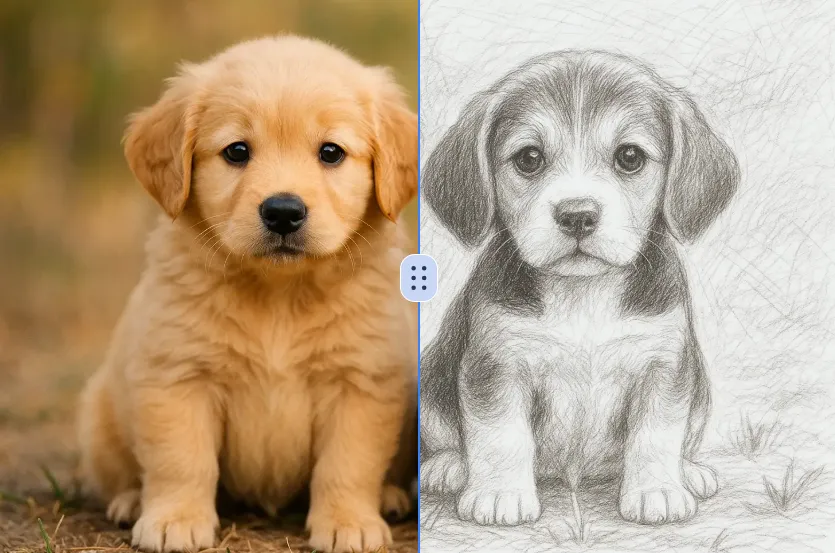
Transform a source image toward the ai photo to sketch look with AI Photo to Sketch. Describe the target style or character details, then check identity, pose, facial features, and background consistency.
Jetzt testenMelde dich mit Google an, um erweiterte Bearbeitungswerkzeuge zu nutzen und deine Kreationen zu speichern. Die Generierung verbraucht Credits gemäß dem Editor.
 Weiter mit Google
 Remove the watermark, download HD images, and keep creating.
Credit-Richtlinie:
Sicherer Checkout · Zahlungsmethoden im Checkout · Credits nach Bestätigung